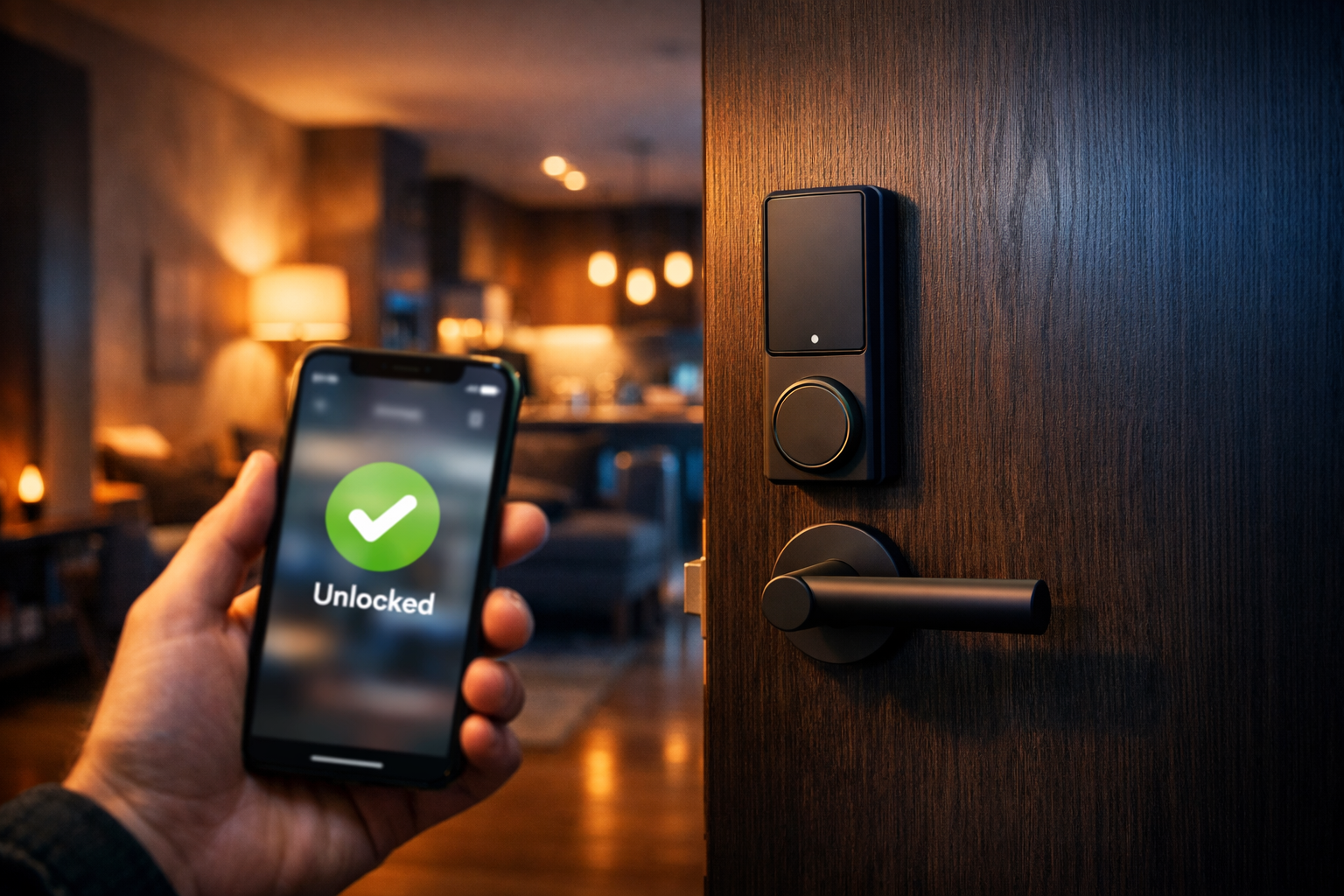
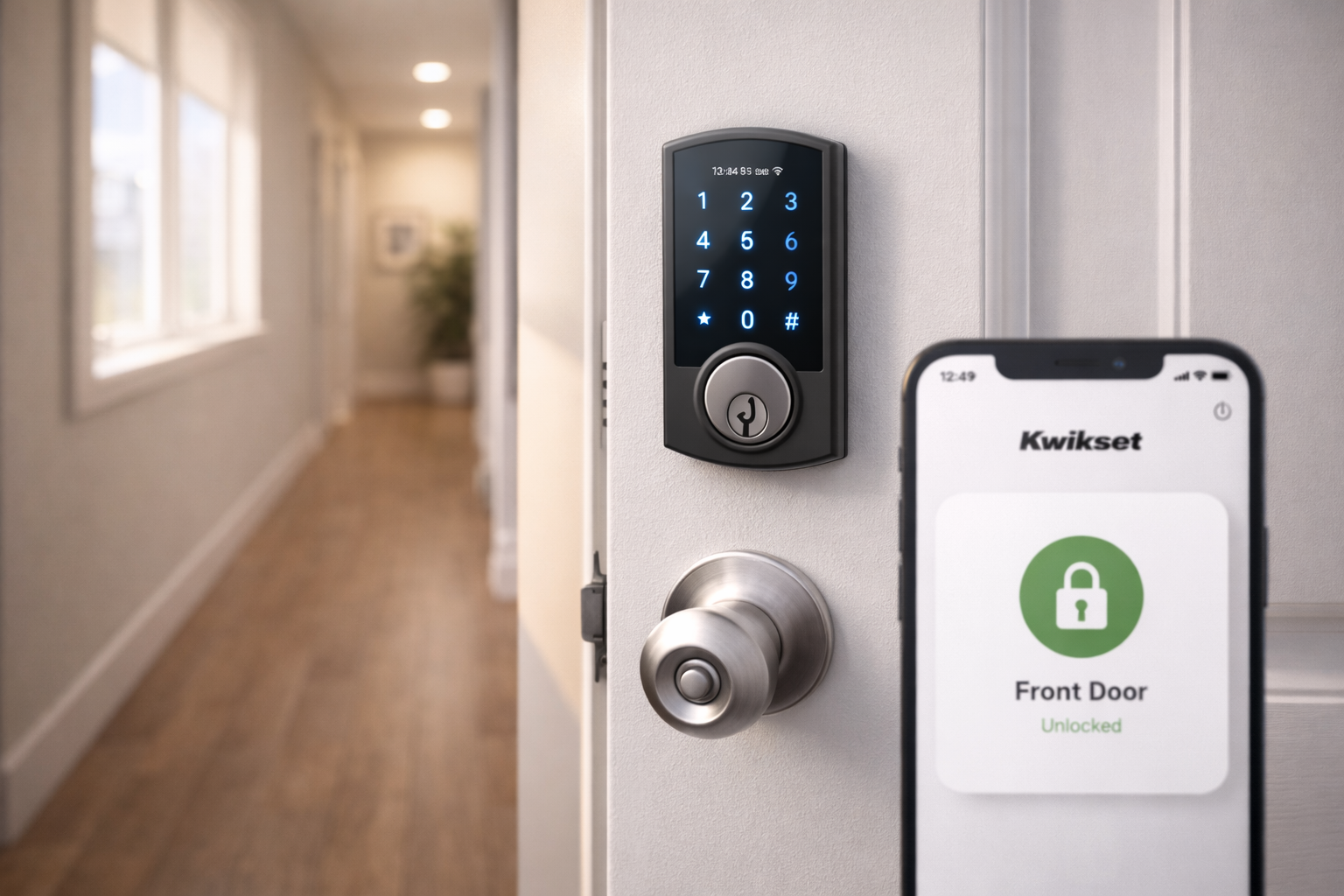
Your Kwikset smart lock stopped responding, won’t accept new codes, or keeps showing offline in the app. Before calling maintenance or your landlord, try a factory reset. It fixes most lock issues in under 5 minutes.
A proper reset solves 90% of connectivity and programming problems with Kwikset smart locks. Whether your lock froze after a battery change, won’t sync with your phone, or simply isn’t working correctly, resetting it is the first troubleshooting step.
The process is completely renter-friendly. You won’t need to remove the lock from your door, drill anything, or risk your security deposit. This guide covers every current Kwikset model, including Halo, Premis, Aura, and traditional SmartCode deadbolts, with exact reset procedures for each.
Quick Answer: How to Reset a Kwikset Smart Lock
Most Kwikset smart locks reset using this method:
- Remove the interior cover (slides off, no screws needed)
- Locate the small reset button near the battery compartment
- Press and hold the button with a paperclip for 10-15 seconds
- Wait for the keypad to flash green. Factory reset is complete
Detailed model-specific instructions and troubleshooting steps are provided below for each Kwikset lock model.
Quick Comparison: Kwikset Smart Lock Models
| Model | Connectivity | Reset Button Location | Factory Reset Time | Best For Renters |
|---|---|---|---|---|
| Halo Touch | Wi-Fi + Bluetooth | Inside lock housing | 30 seconds | Yes – No hub needed |
| Halo Wi-Fi | Wi-Fi only | Inside lock housing | 30 seconds | Yes – Direct Wi-Fi connection |
| Premis | Bluetooth + HomeKit | Inside lock housing | 45 seconds | Yes – Apple ecosystem users |
| Aura | Bluetooth only | Inside lock housing | 30 seconds | Yes – Budget-friendly option |
| SmartCode Deadbolt | Keypad only | Program button on the interior | 20 seconds | Yes – No app required |
| Model | Connectivity | Reset Button Location | Factory Reset Time | Best For Renters |
|---|---|---|---|---|
| Halo Touch | Wi-Fi + Bluetooth | Inside lock housing | 30 seconds | Yes – No hub needed |
When You Need to Reset Your Kwikset Smart Lock
These are the most common scenarios where a factory reset resolves the problem:
Lock Stopped Responding After Battery Change
When you replace batteries, the lock sometimes loses its programming or enters a frozen state. A reset restores normal function.
Can’t Add New User Codes
If your lock refuses to accept new codes or shows “code limit reached” incorrectly, a reset clears the memory.
App Connection Failed
Your Kwikset app won’t connect, keeps showing “offline,” or the lock disappeared from your device list entirely.
Moving to a New Apartment
Always factory reset your smart lock before moving out. This removes all user codes, protects your privacy, and restores it to default settings for the next tenant.
Lock Beeps Continuously or Flashes Red
This indicates a critical error that requires a full reset to clear the malfunction.
Kwikset Smart Lock Reset: Halo Models (Touch & Wi-Fi)
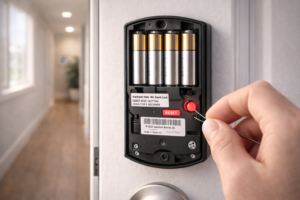
The Kwikset Halo is their flagship model with built-in Wi-Fi. The reset button is clearly marked and easy to access.
Step 1: Remove the Interior Cover
Open your door and locate the interior assembly of your Halo lock. Gently pull down on the cover it slides off without any screws.
Step 2: Locate the Reset Button
You’ll see a small circular button labeled “RESET” near the battery compartment. It’s typically red or black.
Step 3: Press and Hold the Reset Button
Using a paperclip or pen tip, press and hold the reset button for 10-15 seconds. Don’t release early.
Step 4: Watch for Confirmation
The exterior keypad will flash red, then green, and you’ll hear a long beep. This confirms the factory reset is complete.
Step 5: Reprogram Your Lock
The lock will now require a new master code to be programmed. Refer to your original instruction manual for the programming sequence, or contact Kwikset support if you need assistance.
Reset Time: 30-45 seconds total
How to Reset Kwikset Premis
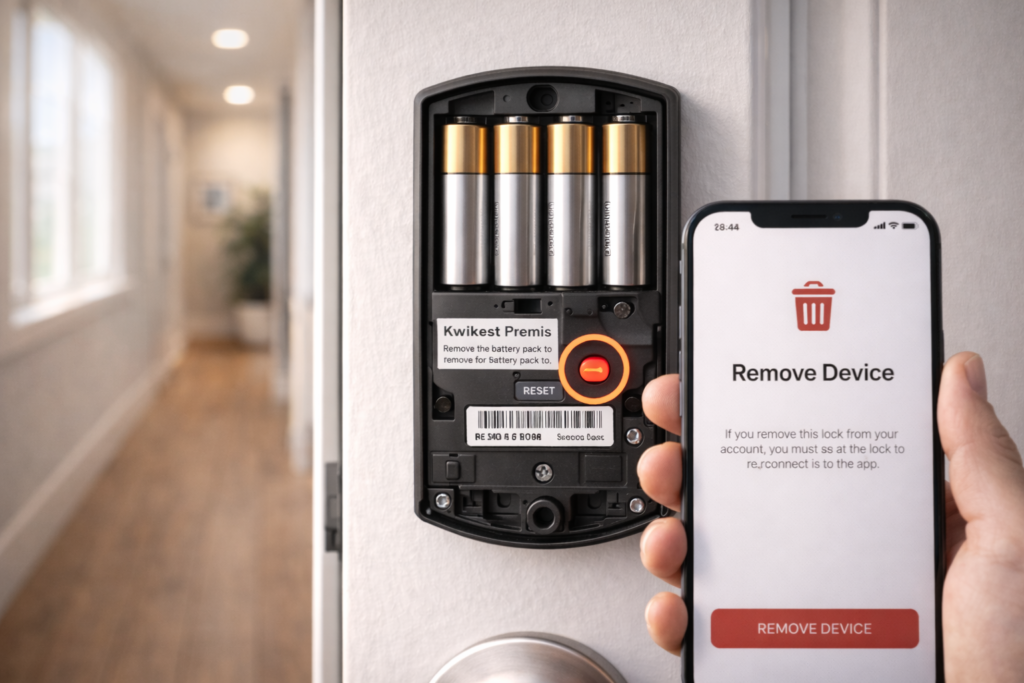
The Kwikset Premis is designed for Apple HomeKit users. Follow this process for a clean reset.
Step 1: Open the Kwikset App First
Before touching the physical lock, open your Kwikset app and go to Settings > Remove Device. This unpairs the lock from your account properly.
Step 2: Remove the Interior Cover
Slide off the interior cover of your Premis lock. No tools required.
Step 3: Locate and Press the Reset Button
The reset button on the Premis sits next to the battery compartment. Press and hold it with a paperclip for 15 seconds.
Step 4: Confirm the Reset
The lock will beep three times and flash amber, then green. All user codes, Wi-Fi credentials, and HomeKit pairings are now erased.
Step 5: Re-pair with HomeKit (Optional)
If you’re keeping the lock, scan the HomeKit code on the interior cover to re-add it to your Home app.
Reset Time: 45-60 seconds total
How to Reset Kwikset Aura
The Kwikset Aura is a budget-friendly Bluetooth-only lock. Many landlords choose this model because it doesn’t require Wi-Fi infrastructure.
Step 1: Remove the Interior Cover
The Aura’s interior cover slides off easily—no screws or tools needed.
Step 2: Locate the Small Reset Button
The Aura’s reset button is smaller than the Halo’s. Look for a tiny pinhole marked “RST” near the top of the battery compartment.
Step 3: Press and Hold for 10 Seconds
Use a paperclip to press the reset button. Hold it down until you hear two beeps.
Step 4: Confirm Successful Reset
The keypad will flash red twice, then green once. All user codes are now deleted.
Reset Time: 30 seconds total
Resetting Traditional Kwikset Electronic Deadbolts
Older Kwikset SmartCode deadbolts (models 909, 910, 913, 914, 916) use the program button instead of a dedicated reset button.
Step 1: Locate the Program Button
Open the interior cover. You’ll see a black button labeled “PROGRAM” or “PROG” near the top.
Step 2: Press and Hold the Program Button
Hold the button down until you hear one long beep and see the keypad flash red (about 7-10 seconds).
Step 3: Enter the Master Code Reset Sequence
On the exterior keypad, press: PROGRAM button → 0 → 0 → LOCK button. The lock will beep and flash green.
Step 4: Set a New Master Code
Program a new master code by pressing: PROGRAM → [your 4-8 digit code] → LOCK.
Reset Time: 20-30 seconds total
Kwikset Smart Locks Reset Without Master Code
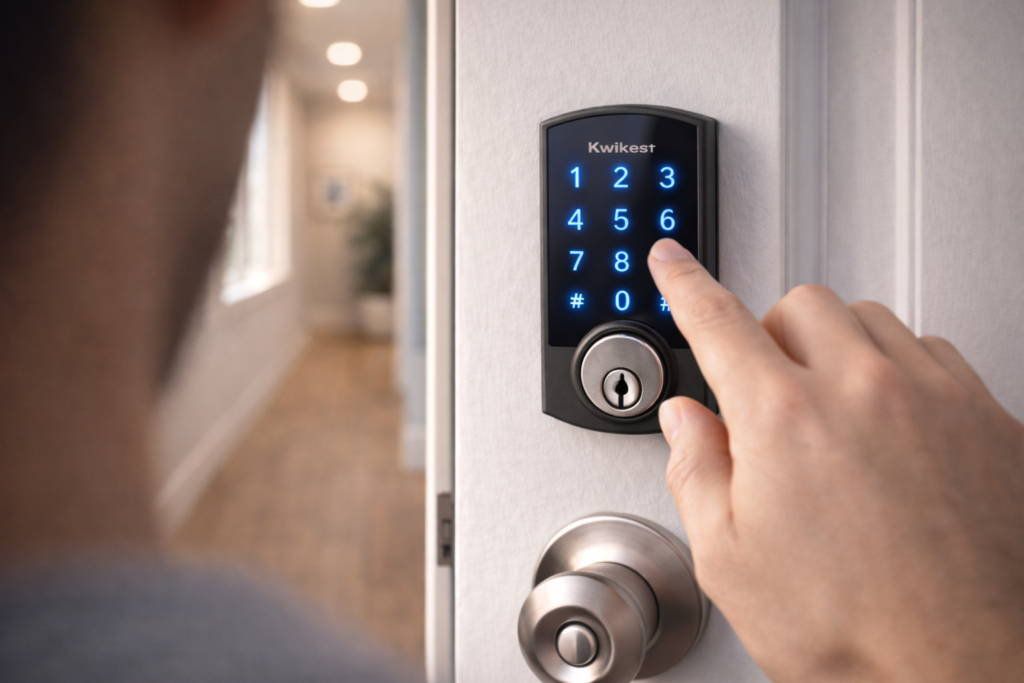
If you have never received a master code from your landlord, you have several options.
Solution 1: Use the Physical Reset Button
The reset button method works without needing any codes. Follow the steps above for your specific model (Halo, Premis, or Aura). This is the most reliable method.
Solution 2: Factory Default Reset Sequence (Select Models Only)
This sequence only works on certain older SmartCode models (909, 910, 913, 914 manufactured before 2020). It does not work on newer Halo, Premis, or Aura models.
For compatible older models, try this keypad sequence:
- Press and hold the LOCK button for 10 seconds
- Enter: 9 – 9 – 9 – 9 – 9 – 9 (six nines)
- Press the LOCK button again
- The lock should flash and beep, indicating a reset
If this sequence doesn’t work on your model, use the reset button method instead.
Solution 3: Contact Kwikset Support
If neither method works, you likely have a malfunctioning lock. Call Kwikset customer support at 1-800-327-5625 with your lock’s serial number (found on the interior cover).
Kwikset Smart Lock Reset Without Removing Door Hardware
All reset methods work with the lock fully installed. You never need to unscrew the lock from your door, which protects your apartment from damage and preserves your security deposit.
Post-Reset Setup Guide
After performing a factory reset on your Kwikset lock, follow these steps to reprogram it.
Step 1: Set a New Master Code
On most models, press: PROGRAM → [your new 4-8 digit code] → LOCK. The lock will beep once and flash green.
Step 2: Reconnect to the Kwikset App
- Open the Kwikset app
- Tap “Add New Lock”
- Follow the Bluetooth pairing prompts
- Enter your new master code when prompted
Step 3: Add User Codes for Roommates
Go to Settings → User Codes → Add User. Most Kwikset models support up to 30 user codes.
Step 4: Reconnect to Smart Home (If Applicable)
- For Halo: Connect to your Wi-Fi network through the app
- For Premis: Re-scan the HomeKit code to add to Apple Home
- For Aura: Pair via Bluetooth only (no Wi-Fi needed)
Step 5: Test Everything
Lock and unlock from the app, test each user code, and verify the keypad lights up properly.
Total Setup Time: 10-15 minutes
Troubleshooting Common Reset Issues
Problem: Reset Button Doesn’t Respond
Solution: Replace the batteries first. A reset requires sufficient power. Use fresh alkaline batteries (not rechargeable).
Problem: Lock Resets But Won’t Accept New Codes
Solution: Wait 60 seconds after reset before programming. The lock’s memory needs time to clear completely.
Problem: App Still Shows “Device Offline” After Reset
Solution: Completely uninstall and reinstall the Kwikset app. Then re-pair the lock from scratch.
Problem: Keypad Stays Red After Reset
Solution: This indicates a hardware failure. Contact Kwikset warranty support—most locks have a 1-year warranty.
Problem: Lock Keeps Resetting Itself
Solution: Check for loose battery contacts. Remove the batteries, clean the contacts with a dry cloth, and reinsert them firmly.
Reset Difficulty Comparison
| Model | Reset Difficulty | Tools Needed | Renter Friendly |
|---|---|---|---|
| Halo Touch | Easy | Paperclip only | Yes – No removal required |
| Halo Wi-Fi | Easy | Paperclip only | Yes – No removal required |
| Premis | Easy | Paperclip only | Yes – No removal required |
| Aura | Moderate (small button) | Paperclip only | Yes – No removal required |
| SmartCode | Easy | None (uses keypad) | Yes – No removal required |
Legal Disclaimer & Tenant Rights
Landlord-Installed Locks
If your landlord or property management installed the smart lock, you must review your lease agreement before performing a factory reset. Many leases specify that tenants cannot modify or reset property-owned security devices without written permission.
Tenant Laws Vary By State
Tenant rights regarding lock modifications vary significantly by state and municipality. Some jurisdictions allow tenants to change locks with landlord notification, while others prohibit any modifications without explicit written consent.
Recommended steps before resetting a landlord-installed lock:
- Review your lease for clauses about security devices
- Contact your landlord or property manager in writing
- Document their approval before proceeding
- Keep records of all communications
Information Purposes Only
This guide is provided for informational and educational purposes only. The author and The Rental Tech are not responsible for any lease violations, lockouts, or other consequences resulting from resetting locks you don’t own or are not authorized to modify.
When in doubt, always contact your landlord or property manager before performing any lock reset.
FAQ: Kwikset Smart Lock Reset
Will Resetting My Kwikset Lock Delete All User Codes?
Yes. A factory reset erases all user codes, Wi-Fi credentials, and app pairings. You’ll need to reprogram everything from scratch.
Can I Reset a Kwikset Lock Without Removing It From the Door?
Absolutely. All reset procedures are done with the lock installed. You never need to unscrew or remove the lock, which protects your security deposit.
How Do I Reset a Kwikset Smart Lock After Battery Replacement?
Most locks auto-reset after battery changes. If it doesn’t respond, manually press the reset button for 10 seconds, then reprogram your master code.
Is There a Universal Default Master Code for Kwikset Locks?
No, there is no universal default code that works across all Kwikset locks. After a factory reset, you must program a new master code. Check your original instruction manual or contact Kwikset support for programming instructions specific to your model.
Will a Factory Reset Damage My Lock or Door?
No. Resetting is 100% software-based. It won’t harm your lock mechanism or leave any marks on your door.
Final Verdict
The Kwikset Halo Touch remains the best option for renters due to its clearly marked reset button, built-in Wi-Fi (no hub required), and compatibility with major smart home platforms. The reset process is straightforward and reliable.
Before you move out, always perform a factory reset to erase your codes and protect your privacy. This takes 2 minutes and prevents security issues for you and the next tenant.
If resetting doesn’t solve your problem—particularly if the keypad stays red or unresponsive—contact Kwikset warranty support at 1-800-327-5625. You likely need a hardware replacement.
Next Steps
- Bookmark this guide for future reference when troubleshooting lock issues
- Check your lease before resetting landlord-installed locks
- Review our comparison of renter-friendly smart locks if you need a replacement
Internal Links
Best Smart Locks for Apartments (No Drilling Required)
Helps renters choose a replacement lock if the reset fails or if upgrading to a newer model.
Best Smart Lighting for Renters
External Links
- Kwikset Official Support Center (DoFollow)
- Kwikset Warranty Registration (DoFollow)